.avif)

Shopware Store Locator: AI-Powered, SEO-Ready, Zero Code
Everything you need from a Shopware store locator

AI Content Assistant
Stop writing location descriptions by hand. MapCosmos generates engaging, SEO-optimized content for every store, including local keywords, opening hours context, and product highlights, in seconds.

One-snippet embed
Copy one HTML snippet into your Shopware theme. No apps, no extensions, no developer needed. Your store locator is live in minutes and compatible with every Shopware theme.

150+ no-code customization options
Control layout, colors, map styles, filters, fonts, languages, and currencies. Every detail of your store locator can be tailored to match your brand, with no design experience or coding required.

Dedicated SEO pages for every location
Each store gets its own indexed page with AI-generated metadata, schema markup, and local keywords. Your locations start appearing in local search results, driving organic traffic without additional ad spend.

Rich location content and media
Showcase products, services, live reviews, photo galleries, team bios, downloadable menus or flyers, and custom map markers. Turn every location page into a conversion tool, not just a map pin.

Real-time analytics and live data sync
See exactly what customers search for, which locations get the most views, and where drop-off happens. Connect your CRM or inventory system to keep all location data accurate and up to date automatically.
Launch your Shopware store locator today
Hundreds of Shopware merchants already use MapCosmos to turn local intent into revenue. Start your free trial today and have your store locator live before the end of the day.
How to Add a Store Locator to Shopware
This guide provides a step-by-step walkthrough for adding a MapCosmos store locator widget to your Shopware storefront.
Step 1: Get your installation code
- Log in to your MapCosmos dashboard
- Open your widget
- Click Installation Code
- Copy the snippet provided
👉 If you haven’t created a widget yet, follow our setup guide first.
Step 2: Embed the locator into Shopware
Since Shopware templates are Twig-based, you’ll insert the MapCosmos snippet into a CMS page or theme template.
Option A: Add to a Shopping Experience (CMS Page)
1. Go to Content → Shopping Experiences in your Shopware admin.
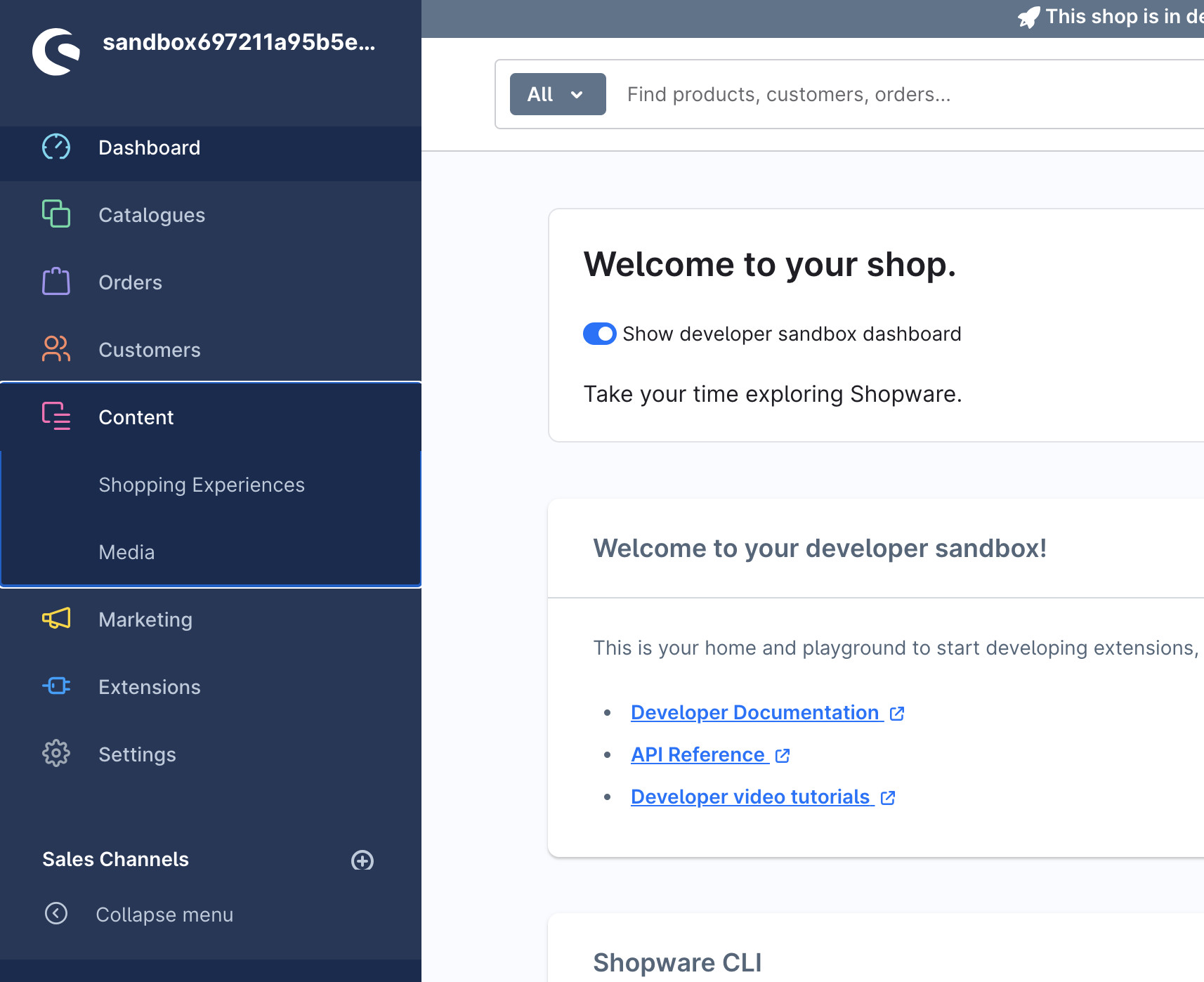
2. Create a new Layout (or edit an existing one).
3. Add a Custom HTML element to the section where you want the locator.
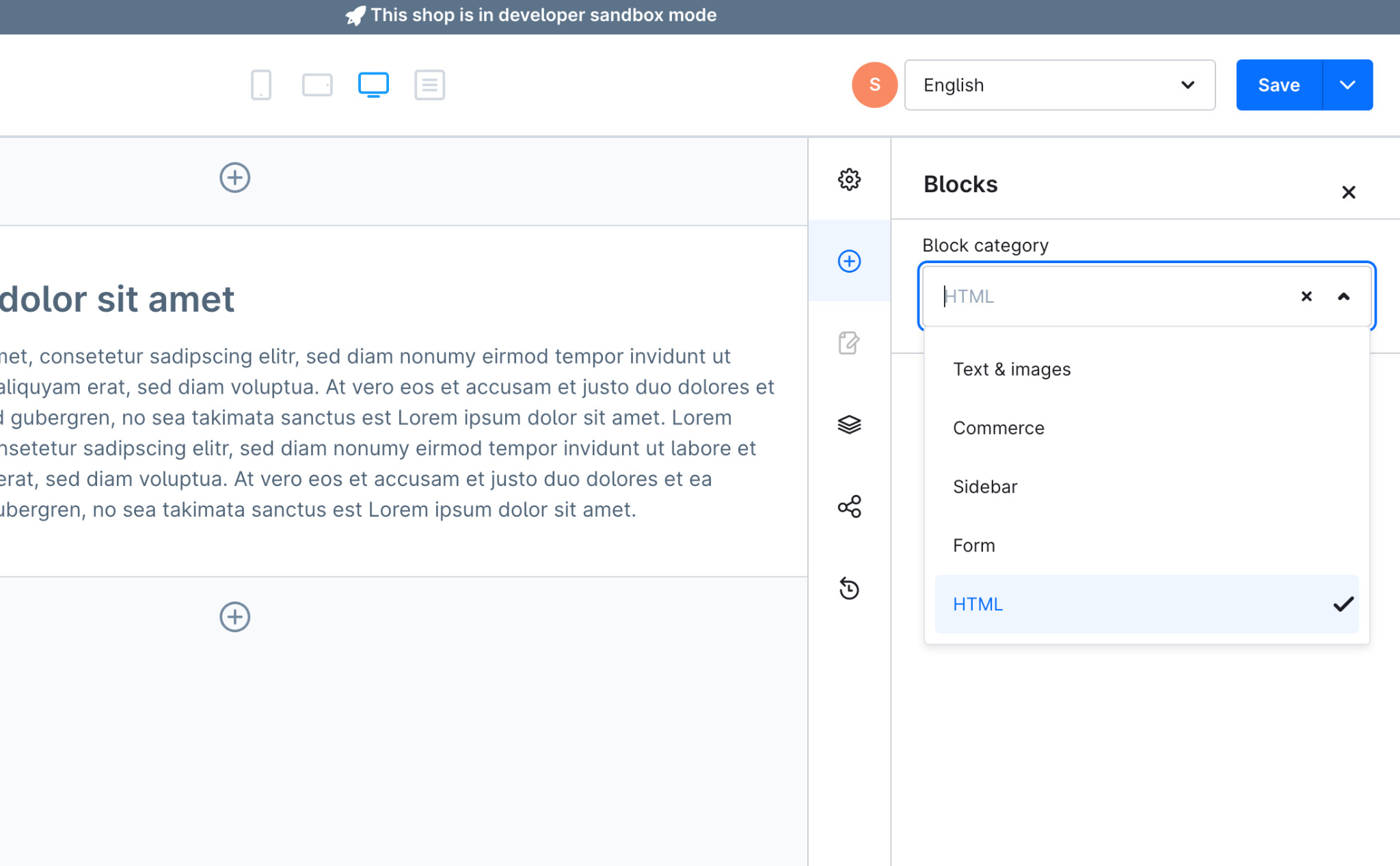
4. Paste the MapCosmos snippet into the HTML field and delta the sample text.
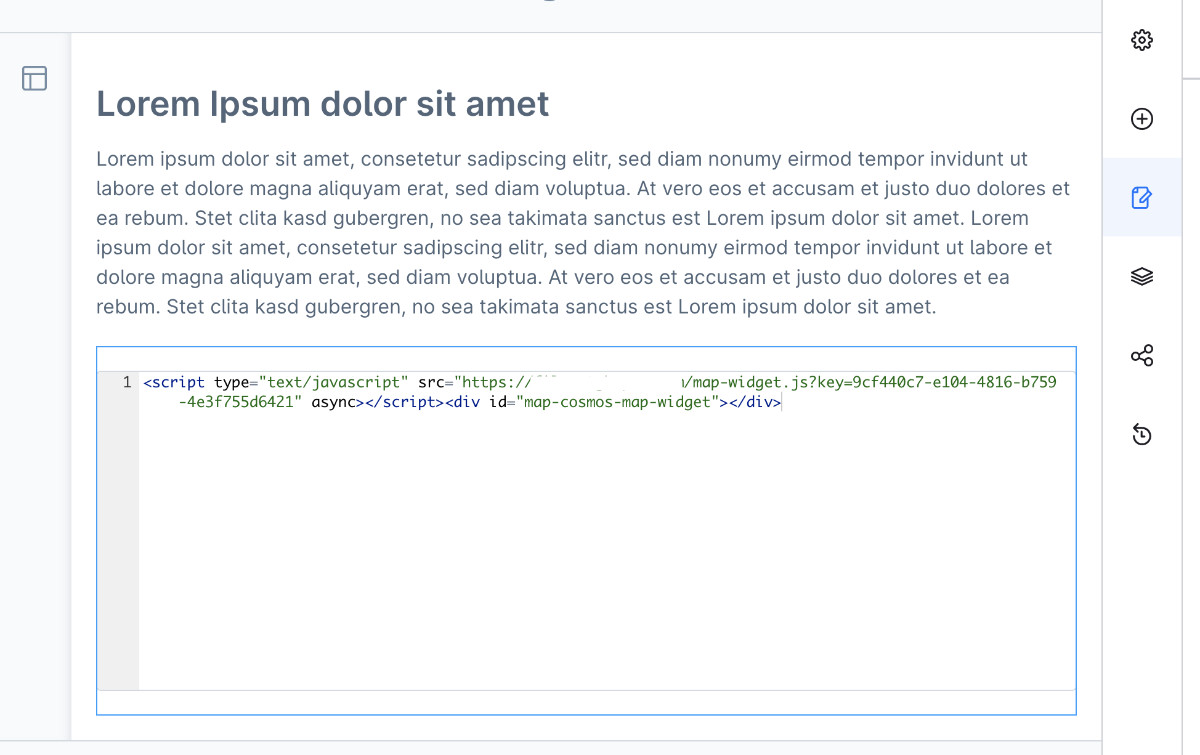
5. Click Save → Assign layout to page → View in storefront to see the real output.
Option B: Add to a Theme Template
If you prefer a dedicated page for the locator:
- Create a new CMS page called Store Locator
- Assign your Shopping Experience layout to it
- In your theme files, create/edit a template like:
custom/plugins/YourTheme/src/Resources/views/store-locator.html.twig
Inside it, paste:
{% sw_extends '@Storefront/storefront/base.html.twig' %}
{% block base_content %}
<h1>Find a Store</h1>
<script type="text/javascript" src="https://widget.mapcosmos.com/map-widget.js?key=WIDGET_KEY" async></script>
<div id="map-cosmos-map-widget"></div>
{% endblock %}
Clear the cache and recompile theme:
bin/console cache:clear
bin/console theme:compile
Step 3: Publish and test
- Assign the new page to your navigation (e.g., “Find Us” or “Store Locator”).
- Refresh the storefront.
- Verify that the widget renders and loads correctly.
What your customers can do
✅ Search instantly for nearby locations
✅ Get directions with one click (Google/Apple Maps)
✅ Filter results by category, product, or service
✅ Access opening hours, parking, and accessibility details
✅ Download PDFs like catalogs or menus directly
🚀 Start with MapCosmos free today and add a powerful, responsive store locator to your Shopware storefront in minutes.