.avif)

Concrete CMS Store Locator: AI-Powered, SEO-Ready, Zero Code
Everything you need from a Concrete CMS store locator

AI Content Assistant
Stop writing location descriptions by hand. MapCosmos generates engaging, SEO-optimized content for every store, including local keywords, opening hours context, and product highlights, in seconds.

One-snippet embed
Add MapCosmos to any Concrete CMS page, block, or template with a single HTML snippet. No modules to install, no database migrations, no developer overhead.

150+ no-code customization options
Control layout, colors, map styles, filters, fonts, languages, and currencies. Every detail of your store locator can be tailored to match your brand, with no design experience or coding required.

Dedicated SEO pages for every location
Each store gets its own indexed page with AI-generated metadata, schema markup, and local keywords. Your locations start appearing in local search results, driving organic traffic without additional ad spend.

Rich location content and media
Showcase products, services, live reviews, photo galleries, team bios, downloadable menus or flyers, and custom map markers. Turn every location page into a conversion tool, not just a map pin.

Real-time analytics and live data sync
See exactly what customers search for, which locations get the most views, and where drop-off happens. Connect your CRM or inventory system to keep all location data accurate and up to date automatically.
Launch your Concrete CMS store locator today
Whether you run a small Concrete CMS site or a large multi-site network, MapCosmos scales with you. Start your free trial and launch your store locator today.
How to Implement MapCosmos Store Locator Widget in Concrete CMS
Integrating a MapCosmos store locator is a straightforward process using Concrete CMS's block-based architecture.
1. Get the Installation Code from MapCosmos:
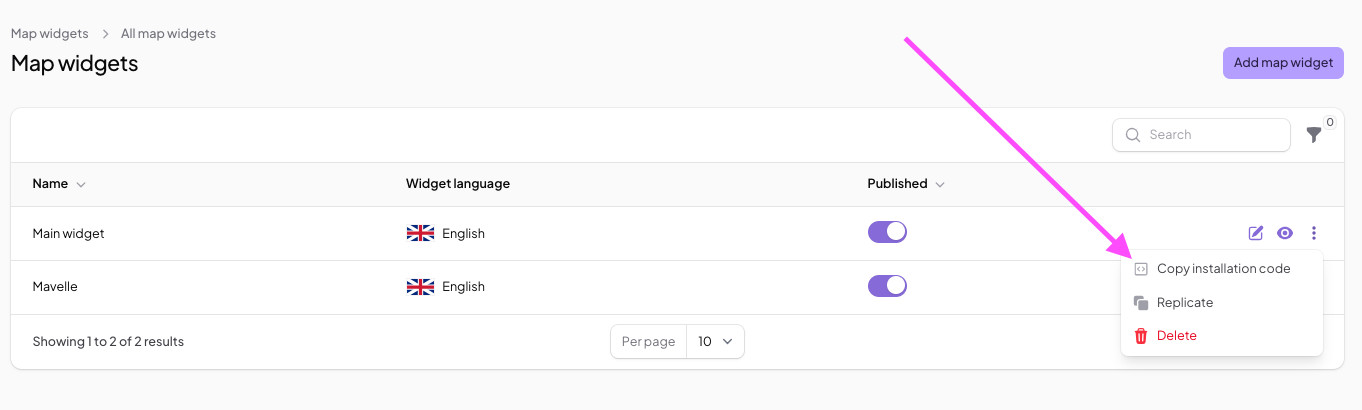
First, build your map in the MapCosmos platform. You can add your locations manually or use the bulk import tool to upload a CSV/Excel file. Customize the design to match your brand's theme, including colors, fonts, and layout. Once you're done, copy the installation code from your widget's settings.
2. Add an HTML Block:
Log in to your Concrete CMS site and navigate to the page where you want the map. Click the plus icon (+) on a content area, and select the HTML block.
.jpeg)
3. Embed the Code:
Paste the installation code you copied from MapCosmos into the HTML block editor and save your changes. Your customized store locator is now live!